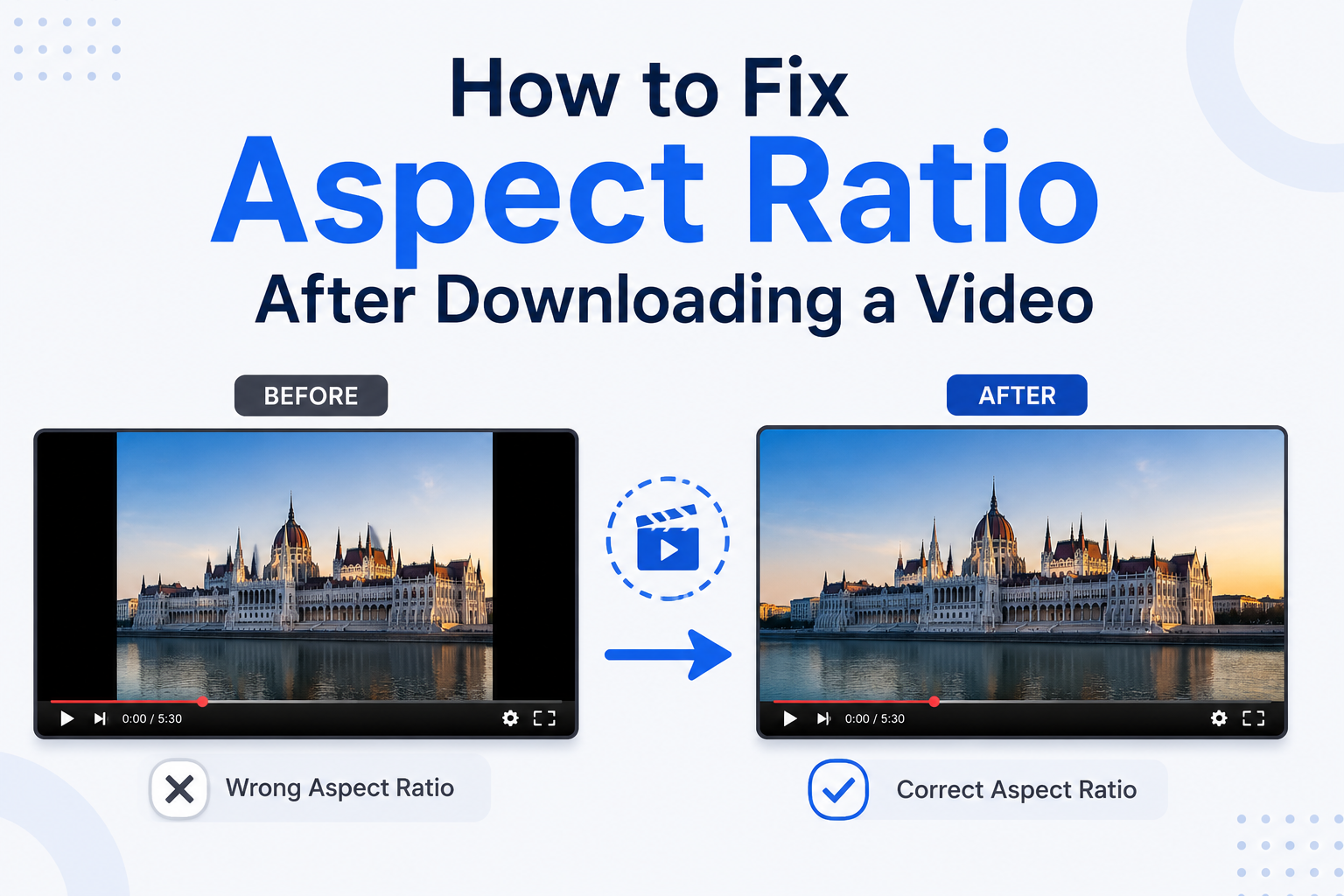
You download a video, open it up, and something looks immediately wrong. The picture is stretched horizontally making everyone look unnaturally wide. Or there are thick black bars eating up half the screen. Or the video is cropped and cuts off important parts of the frame.
This happens more than most people realize and it almost always comes down to one thing: the aspect ratio is wrong.
I’ve dealt with this exact problem dozens of times. Downloaded videos from social media, YouTube, or other platforms and ended up with a file that looks completely different from how it appeared online. The good news is fixing it is straightforward once you understand what went wrong and which tool to use.
This guide covers exactly why aspect ratio breaks after downloading and how to fix it fast.
Why Does Aspect Ratio Go Wrong After Downloading?
Before fixing the problem it helps to understand why it happens in the first place.
When you download a video the file you receive contains the raw video data plus metadata information about how the video should be displayed. Sometimes the metadata and the actual video dimensions don’t match. Sometimes the downloading tool strips or corrupts the metadata. Sometimes the original video was uploaded incorrectly and the platform was compensating for it on the fly.
The most common causes are:
Metadata mismatch the file says it’s 16:9 but the actual pixels are 4:3
Platform encoding some platforms re-encode videos and change the container format
Downloading tool errors some tools don’t preserve the original aspect ratio flags
Original upload errors the creator uploaded the wrong ratio and the platform stretched it to fit
In most cases the video itself is fine. The pixels are all there. You just need to tell your software or export the video with the correct ratio applied.
Step 1 Find the Correct Aspect Ratio First
Before you can fix the problem you need to know what the correct ratio should be.
This sounds obvious but it’s the step most people skip. They just start adjusting settings without knowing the target dimensions.
Here’s how to find the correct ratio:
Check the original source. If you downloaded from YouTube the video was almost certainly 16:9. TikTok and Instagram Reels are at 9:16. Instagram feed videos are 4:5 or 1:1. Twitter in-stream videos are 16:9.
Check the file properties. Right click the video file, go to Properties then Details (Windows) or Get Info (Mac). This shows you the actual pixel dimensions. A file showing 1920×1080 is 16:9. A file showing 1080×1920 is 9:16.
Use an aspect ratio calculator. Once you have the pixel dimensions, plug them into a free aspect ratio calculator to instantly confirm the ratio and find the correct output dimensions you need. This takes ten seconds and eliminates guesswork.
Step 2 Identify What Kind of Problem You Have
Not all aspect ratio problems are the same. Knowing which type you have determines which fix to apply.
Problem Type 1: Stretched or Squished Video
The video plays but everyone looks too wide or too tall. This means the player or the file is displaying the wrong ratio. The pixels are all there; they’re just being displayed at the wrong proportions.
Fix: Change the playback ratio in your media player or re-export with the correct ratio applied.
Problem Type 2: Black Bars (Letterboxing or Pillarboxing)
Black bars appear on the top and bottom (letterboxing) or left and right sides (pillarboxing). This means the video dimensions don’t match the player or output format.
Fix: Either crop the video to remove the bars or scale it to fill the frame correctly.
Problem Type 3: Video is Cropped
Important parts of the frame are cut off. This happens when a platform auto-cropped the video during download or the export settings were wrong.
Fix: Re-download from the original source if possible or adjust crop settings in a video editor.
Step 3 Fix the Aspect Ratio Using the Right Tool
Now for the actual fix. Here are the best approaches depending on what tools you have available.
Fix Using VLC Media Player (Quickest Fix No Export Needed)
VLC is free and available on every platform. It lets you change the display ratio without re-encoding the file — so it’s instant.
Open your video in VLC
Go to Tools → Effects and Filters → Video Effects → Geometry
Check the Transform box or use the Aspect Ratio dropdown
Select the correct ratio (16:9, 4:3, 9:16 etc.)
The video displays correctly immediately
This fixes the playback but doesn’t change the actual file. If you need to share or upload the fixed video you need to export it with the correct settings.
Fix Using HandBrake (Free Best for Re-encoding)
HandBrake is the gold standard for free video conversion and ratio fixing. According to HandBrake’s official documentation, you can set custom anamorphic and cropping options to correct ratio issues during encoding.
Download and open HandBrake
Open your source video file
Go to the Dimensions tab
Set the correct Width and Height for your target ratio
Set Anamorphic to None
Set Cropping to Custom if you need to remove black bars
Click StartEncode
For a 16:9 output at 1080p set Width to 1920 and Height to 1080. For a 9:16 vertical video set Width to 1080 and Height to 1920.
Fix Using DaVinci Resolve (Free Best for Quality)
DaVinci Resolve is professional grade video editing software that is completely free. It gives you the most control over aspect ratio correction.
Create a new project and set the timeline resolution to your target ratio
Import your downloaded video
Right click the clip in the timeline
Select Change Clip Attributes
Set the correct pixel aspect ratio
Export using Deliver with your target dimensions
This approach is best when quality matters for example if you’re fixing a video before re-uploading to a platform.
Fix Using FFmpeg (Free Best for Batch Processing)
If you have multiple videos to fix, FFmpeg is the fastest approach. It’s a command line tool but the commands are simple. According to ffmpeg documentation , you can use the scale and setstar filters to correct aspect ratio in one command:
Replace 1920:1080 with your target dimensions. This re-encodes the video with the correct ratio applied. For batch processing you can run this on multiple files simultaneously making it the most efficient solution for large collections.
Step 4 Verify the Fix Before Uploading
After fixing the ratio, always verify before uploading or sharing.
Check the file properties to confirm the dimensions are correct. Right click → Properties → Details on Windows.
Play the video and check that people and objects look naturally proportioned. No stretching. No squishing.
Check for remaining black bars. If bars remain, go back and adjust your crop settings.
Test on mobile if uploading to social media. A video can look correct on desktop but still appear wrong on mobile depending on the platform’s player.
Common Aspect Ratios After Download Quick Reference
Platform Downloaded From
Expected Ratio
Correct Dimensions
YouTube (standard)
16:9
1920x1080px
YouTube Shorts
9:16
1080x1920px
TikTok
9:16
1080x1920px
Instagram Feed
4:5 or 1:1
1080×1350 or 1080x1080px
Instagram Reels
9:16
1080x1920px
Twitter/X
16:9
1280x720px
Facebook Feed
16:9 or 1:1
1920×1080 or 1080x1080px
Conclusion
Fixing aspect ratio after downloading a video is not complicated once you know the process. The key steps are:
Identify the correct ratio using the source platform or file properties
Diagnose the problem type stretched, black bars, or cropped
Choose the right tool VLC for quick playback fix, HandBrake for re-encoding, DaVinci Resolve for quality, FFmpeg for batch processing
Verify the fix before uploading or sharing
The most important step that most people skip is confirming the correct dimensions before making any changes. Use an aspect ratio calculator to check your numbers first it takes ten seconds and saves you from fixing the wrong problem.
FAQs
Why does my downloaded video look stretched?
A stretched video usually means there is a mismatch between the video’s actual pixel dimensions and the aspect ratio metadata the player is reading. The most common fix is to open the video in VLC, go to Tools → Effects and Filters → Video Effects → Geometry and manually set the correct display ratio. If you need to fix the actual file use HandBrake to re-encode with the correct dimensions.
How do I remove black bars from a downloaded video?
Black bars appear when the video dimensions don’t match the display or output format. In HandBrake set Cropping to Custom and manually enter crop values to remove the bars. In DaVinci Resolve right click your clip and use the zoom or crop tools. Make sure you know your target dimensions before cropping use an aspect ratio calculator to find the correct width and height for your desired ratio.
What is the best free tool to fix video aspect ratio?
HandBrake is the best free tool for fixing and re-encoding videos with correct aspect ratio. It’s available for Windows, Mac, and Linux, handles virtually all video formats, and gives you precise control over dimensions and cropping. VLC is the best option if you just need to fix the playback display without re-encoding the file.
How do I fix the aspect ratio for a video I want to upload to Instagram?
For Instagram feed posts the correct ratio is 4:5 at 1080x1350px or 1:1 at 1080x1080px. For Reels use 9:16 at 1080x1920px. Re-encode your downloaded video to these dimensions using HandBrake or DaVinci Resolve before uploading. Always verify the output dimensions match the target before posting.