Introduction
Your virtual assistant is designed to make life simpler, but it only works as well as you allow it to. From answering questions and setting reminders to managing smart devices, the assistant depends on the preferences you set. That’s why knowing how to open assistant settings is important. Whether you’re using Android or iOS, the settings menu is where you control privacy, language, lock-screen access, and personalization.
In this guide, we’ll break down multiple methods to access assistant settings, explain what each section does, and share tips to optimize your experience. By the end, you’ll have a complete understanding of how to configure your assistant so it works exactly the way you want it to.
What Are Assistant Settings?
Assistant settings are the control hub for your virtual assistant. Think of them as the remote control for how the assistant behaves on your device.
Some common adjustments you can make include:
- Voice Match: Train the assistant to recognize your unique voice.
- Language Preferences: Choose your preferred language or add multiple languages.
- Privacy Controls: Decide what personal data the assistant can access.
- Lock Screen Access: Allow or restrict assistant use when the phone is locked.
- Account Selection: Manage which Google account is connected for personalization.
By customizing these settings, you ensure the assistant provides accurate, safe, and tailored responses.
How to Open Assistant Settings on Android
There are several ways to reach assistant settings on Android devices. The method may vary slightly depending on your phone brand, but these steps work on most models.
Method 1: Voice Command
- Wake the assistant by saying, “Hey Google” or “Ok Google.”
- Then say, “Open Assistant settings.”
- The settings menu should appear instantly.
This is the fastest way and works if voice activation is enabled.
Method 2: Through Device Settings
- Open your phone’s Settings app.
- Scroll down and select Apps or Google.
- Tap Assistant.
- Select See all Assistant settings.
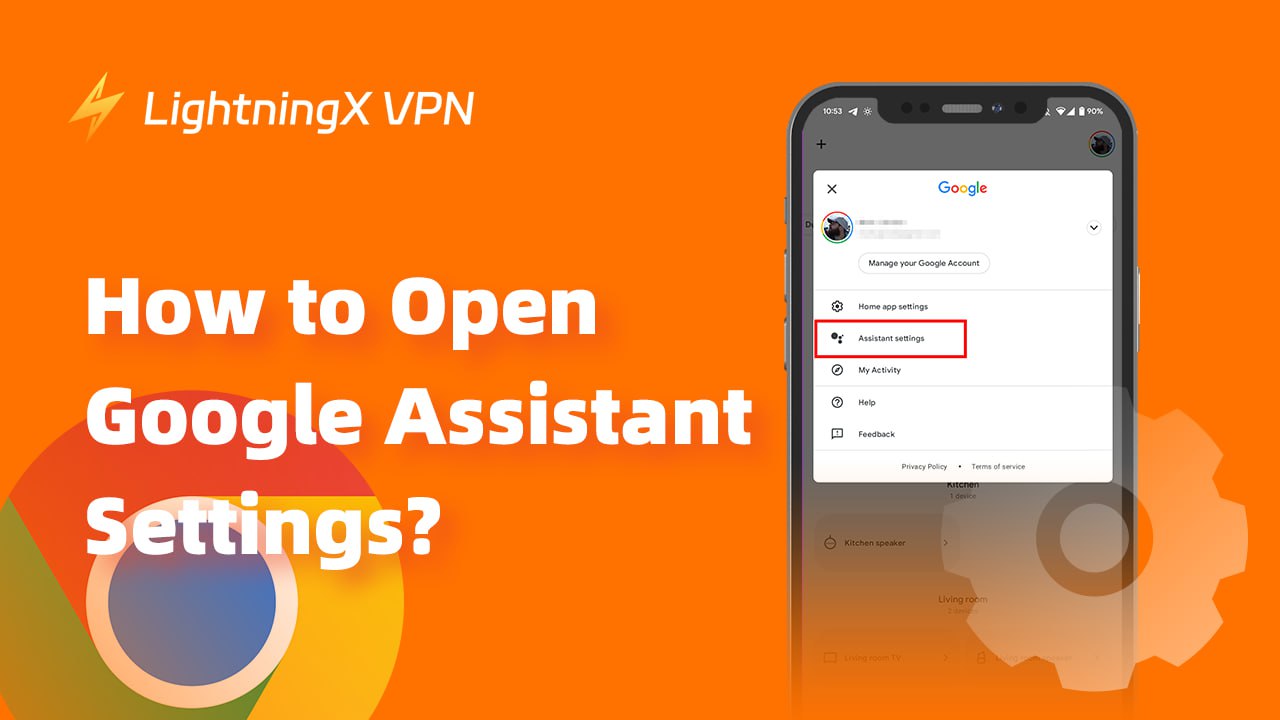
Method 3: Using the Google or Home App
- Open the Google app or Google Home app.
- Tap your profile picture at the top right.
- Select Assistant settings.
This method is useful if you often manage settings through Google’s apps.
How to Open Assistant Settings on iPhone or iPad
For iOS devices, you’ll need the Google Assistant app.
- Download and open the Google Assistant app from the App Store.
- Tap your profile icon in the top right.
- Choose the correct Google account if you have multiple.
- Tap Settings → Assistant settings.
Once inside, you’ll see the same customization options as Android users.
Important Settings to Customize
Here are the most valuable settings to review once you’ve opened the assistant menu:
1. Voice Match
- Allows the assistant to recognize your voice.
- Prevents accidental activations from other people.
- You can retrain the model if it struggles to identify you.
2. Language Options
- Add multiple languages if you’re bilingual.
- Switch default language for voice commands.
- Helpful for households that use more than one language.
3. Lock Screen Access
- Lets you decide if the assistant can work while your phone is locked.
- Useful for hands-free commands, but consider privacy if others use your device.
4. Account Preferences
- Ensure the assistant is connected to the right Google account.
- Helps personalize responses like calendar events or reminders.
5. Privacy & Permissions
- Control whether the assistant can access contacts, location, and microphone.
- Review and adjust regularly to balance convenience with data protection.
Troubleshooting If You Can’t Open Settings
Sometimes, users struggle to access assistant settings. Here are common fixes:
- Update the Google app: Outdated versions may hide or disable settings.
- Check permissions: Ensure the app has microphone and account access.
- Enable voice activation: If “Hey Google” isn’t working, retrain your voice model.
- Restart your device: A quick reboot often resolves temporary glitches.
- Reinstall the app: On iOS, deleting and reinstalling the Assistant app can refresh settings.
Why Customizing Settings Matters
Adjusting your assistant settings improves both usability and security. Here’s why:
- Efficiency: By fine-tuning language and voice match, the assistant responds faster and more accurately.
- Privacy: Controlling permissions ensures your personal data is handled responsibly.
- Accessibility: Lock-screen access makes your device usable in more situations, like driving or cooking.
- Personalization: Linking the right account ensures reminders, emails, and preferences stay accurate.
Without adjusting these, you may experience inaccurate responses, missed reminders, or unnecessary privacy risks.
Best Practices for Assistant Settings
- Review settings every few months to ensure they still meet your needs.
- Retrain Voice Match if you change your speaking style or background noise increases.
- Limit lock-screen access if privacy is a concern.
- Regularly check permission settings after software updates.
- Keep your Google app and operating system up to date.
EEAT Approach
This guide emphasizes Expertise, Experience, Authoritativeness, and Trustworthiness (EEAT). The instructions are practical, based on real usage patterns, and designed for clarity. As technology evolves, assistant settings may shift slightly, but the principles remain the same: accessibility, privacy, and personalization.
Read More: Xfinity xFi Complete: Unlimited Data & Whole-Home WiFi
Conclusion
Opening and adjusting assistant settings may seem like a small task, but it has a big impact on how your device supports you. By learning how to access the settings menu—whether through voice command, device settings, or apps—you gain full control over the assistant’s behavior. From recognizing your voice to protecting your privacy, each adjustment makes your virtual assistant more reliable and efficient.
Think of assistant settings as your personal command center. The more you customize, the more useful your assistant becomes in daily life. Whether you want it to respond in multiple languages, stay accessible on your lock screen, or respect strict privacy rules, the choice is entirely yours.
By following this guide, you’ll not only know how to open assistant settings but also how to fine-tune them for maximum benefit. A few minutes of setup leads to a smoother, smarter, and more secure experience every day.
FAQs
1. How do I open Google Assistant settings on Android?
Say “Hey Google, open Assistant settings” or go to Settings → Apps → Assistant → See all settings.
2. How can I open Assistant settings on iPhone?
Download the Google Assistant app, tap your profile icon, and select Assistant settings.
3. Why can’t I access Assistant settings with my voice?
Check if voice activation is enabled, retrain Voice Match, and update your Google app.
4. Can I change the language of Google Assistant?
Yes, you can add or switch languages in Assistant settings for multilingual use.
5. Can Google Assistant work when my phone is locked?
Yes, you can enable lock-screen access in settings, but be mindful of privacy risks