Anonymous user, “I tried playing video files on my Windows PC, but it keeps displaying an error message. Is there any simple DIY method to restore and play those videos again?”
Getting an error message, a black screen, or other issues while playing videos can be distressing. Whether you are unable to play your cherished memories, a downloaded tutorial, or an important work presentation, playback problems can quickly disrupt your plans and cause unnecessary stress. Fortunately, there are several quick and easy do-it-yourself (DIY) solutions available that you can try to resolve such issues.
In this article, we’ll explore common reasons why your videos won’t play properly, DIY solutions to repair unplayable videos on Windows, and preventive measures to avoid such issues in the future. Let’s explore in detail!
Understanding Why Videos Become Unplayable
It is important to find the exact reasons for your video playback errors. Identifying the exact reason helps you determine the right video repair workarounds and adequate preventive measures to avoid such issues in the future.
Some main reasons why videos get unplayable on your Windows PC include:
- Corrupted Video Files: Instances like sudden system shutdowns, transfer interruptions, or software crashes may make your videos unplayable or partially accessible.
- Unsupported Video Formats or Codecs: Some videos use formats or codecs not supported by your media player, preventing proper decoding and smooth playback.
- Outdated Media Players: If you’re using an older media player version, it may lack compatibility with modern video formats, leading to playback errors, crashes, or missing audio.
- Damaged Storage Devices: Hard drives, USB devices, or memory cards develop bad sectors with continuous usage for a long time and can corrupt video files and prevent successful playback.
- Malware or System Errors: Malicious programs like malware and virus infections can interfere with video processing components, causing playback failures or unexpected errors.
Quick DIY Solutions to Make Videos Playable Again on Windows
Now that you’ve found the exact root cause of your video unplayable issues, it’s time to explore some DIY troubleshooting workarounds that can help you repair videos:
Method 01: Try a Different Video Player
Sometimes the problem is not with your video file – it’s just your media player which prevents video files from playing properly.
Certain media players lack support for specific codecs. For example, a video encoded with HEVC (H.265) might not play properly in older versions of Windows Media Player. In such a case, you can try the below DIY fix:
- Download and install VLC Media Player.
- Try playing your problematic video in VLC.
- If it plays successfully, the issue is likely codec-related.
You can also try other popular online video player tools to play your video files. Just ensure that the player is compatible with your video file format.
Method 02: Install Missing Codecs
A codec (compressor-decompressor) is necessary for decoding and playing certain video formats. If your video player does not support the required codecs, then it may interpret the video data and prevent your videos from playing properly. To fix codec issues:
- Install a reputable codec pack such as K-Lite Codec Pack on your Windows PC.
- Restart your computer and try playing the video again.
Note: Always choose trusted sources for downloading codec packs to avoid malware.
Method 03: Change Video File Format
If your video file format is not completely supported by your system or the media player, then changing the format might make it playable. You can use Windows’ VLC Media Player or any third-party tool such as HandBrake to change your video file format.
Here are quick steps to change your video format using VLC player:
- Launch VLC player, go to “Media” > “Convert/Save.”
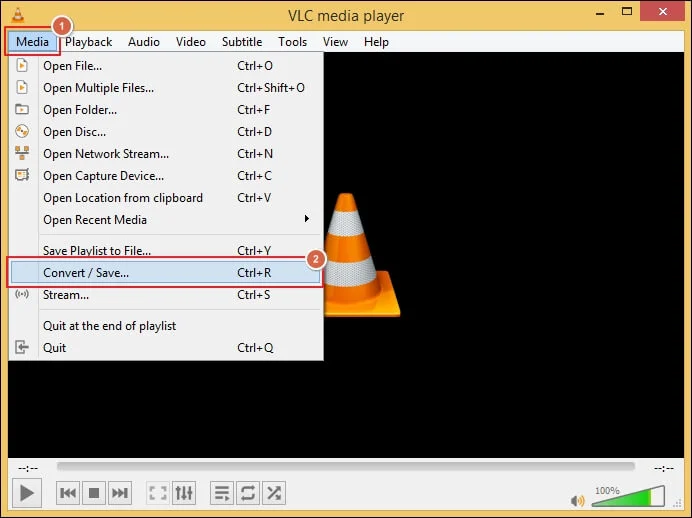
- Upload the video file you need to convert.
- Choose a widely supported format like MP4.
- Click the Convert/Save button to start conversion.
Wait till the process completes. Once done, try playing the new file.
Method 04: Update Windows and Drivers
Outdated Windows OS and drivers installed on your PC can interfere with video playback and cause issues while playing videos. You can follow the below steps to update device OS and drivers:
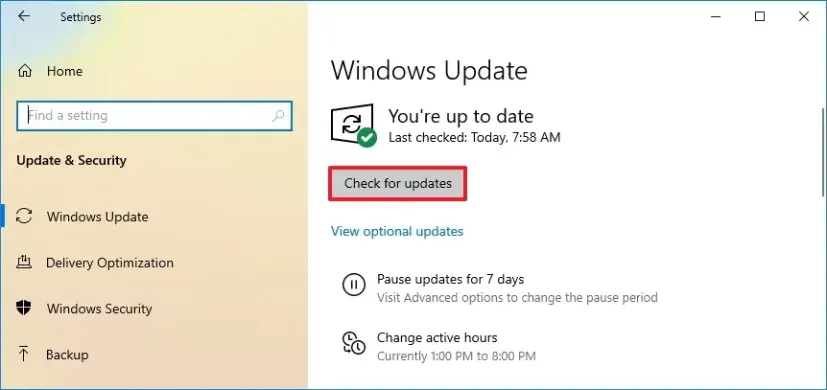
To update Windows OS:
- Press the Windows + I keys to open Settings.
- Go to Update & Security > Check for Updates.
- If any update is available, install them on your PC.
To update your graphics drivers:
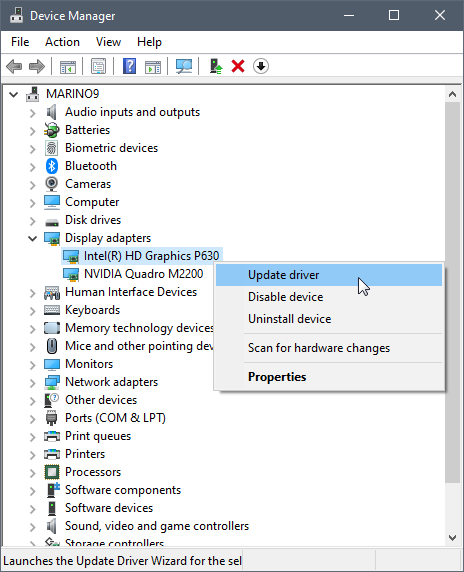
- Right-click the Start icon from the taskbar, then open Device Manager.
- Expand Display adapters, then right-click on your graphics card.
- Select “Update driver” and wait till the updates are installed.
Method 05: Use Command Prompt to Repair System Files
Corrupted system files can also be one of the main reasons which prevent videos from playing properly. Windows has an in-built System File Checker (SFC) tool, which scans your computer for corrupted, missing, or damaged system files and automatically attempts to repair them. All you have to do is:
- Search for CP in the search box.
- Right-click on Command Prompt and choose “Run as Administrator.”
- Now, type the command: sfc /scannow and press Enter to continue.
- Wait till the scan is complete.
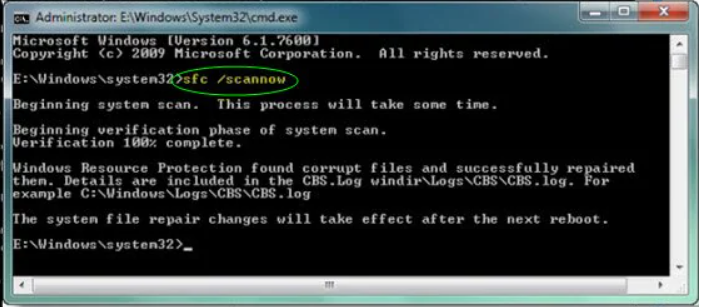
If Windows detects corrupted system files, it will attempt to repair them automatically.
Try Third-Party Video Repair Software to Fix Unplayable Videos on Windows
Instances may occur when the aforementioned DIY solutions to repair unplayable videos on Windows fail or might not give you the desired result. In such a case, you can use professional video repair software such as Stellar Repair for Video to fix your damaged videos in a few simple clicks. This all-in-one video repair software is compatible with both Windows and macOS devices and can help you repair videos stored on various internal or external storage media.
Key Features of Stellar Repair for Video:
- You can use the Stellar Repair for Video tool to fix unplayable videos stored on SD cards, USB drives, DSLRs, Drones, CCTV, Smartphones, etc.
- The software supports multiple formats, including MP4, MOV, AVI, MKV, and more.
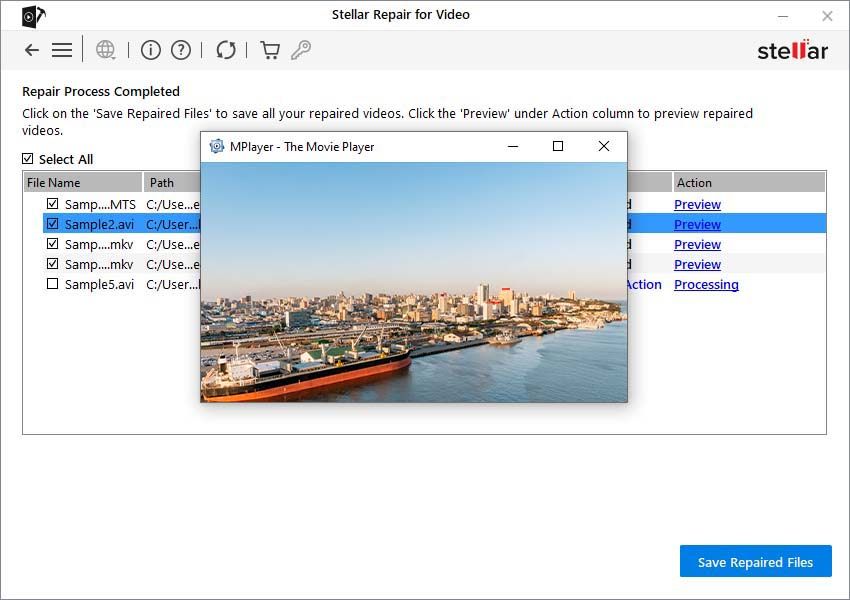
- It allows you to preview repaired videos before saving them on your PC.
- The simple, intuitive interface makes this professional video repair software beginner-friendly.
- The software is available in multiple versions, varying in features and prices.
Here’s how to repair unplayable videos on Windows using the amazing Stellar Repair for Video software:
Step 1: Visit the official Stellar website and download Stellar Repair for Video for Windows. Also, go through the on-screen instructions to install the software on your PC.
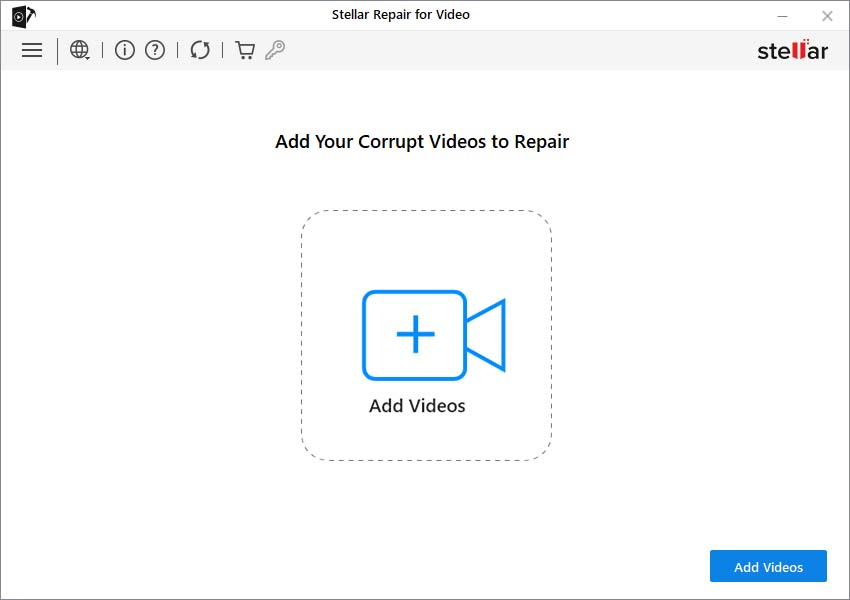
Step 2: Launch the software and from the homepage, tap Add Videos to upload the unplayable video files you want to repair.
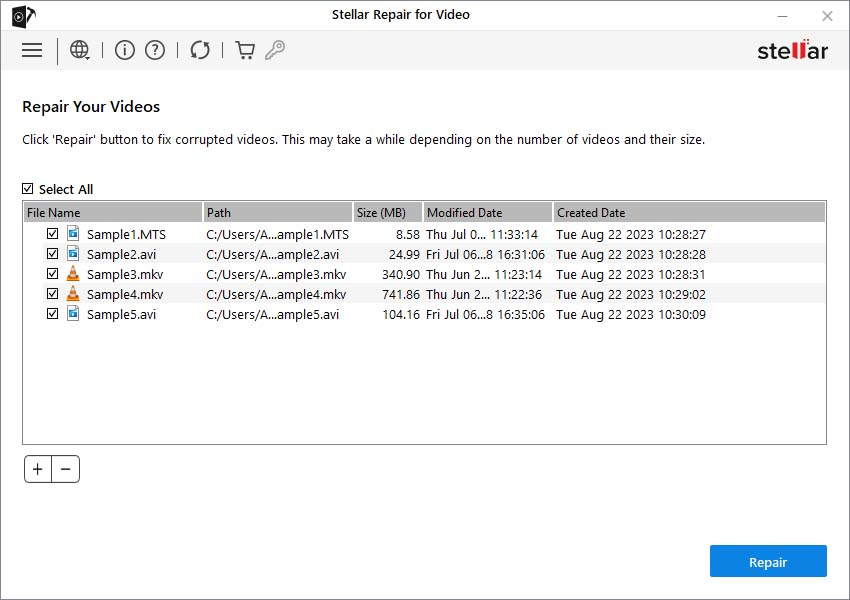
Step 3: After adding the files, click the “Repair” button. Wait till the software analyses the video structure and begins restoring damaged components such as headers, audio streams, and frame data.
Step 4: Once the repair process is complete, preview the repaired video files and click “Save Repaired Files” to save them on your PC.
Note: Try saving the repaired videos to a different drive to avoid overwriting original data.
Additional Tips to Prevent Future Video Corruption
Prevention is always better than repair. You can follow the below best practices to avoid video corruption:
- Always properly eject USB drives from your PC.
- Avoid forced shutdowns during file transfers.
- Maintain regular backups of your important video files.
- Use reliable download sources for downloading apps on your system.
- Keep Windows and drivers updated.
- Use antivirus protection to protect your PC from malicious programs.
Wrapping Up
Unplayable videos on Windows can result from codec incompatibility, corruption, incomplete downloads, or system issues. If you ever encounter video-related issues, try the aforementioned DIY solutions to fix unplayable videos on Windows. Start with basic methods, such as trying different media players like VLC Media Player and installing reliable codecs. If these methods fail, you can try third-party video repair software such as Stellar Repair for Video to repair your unplayable videos.
By understanding the root causes and applying the appropriate fix, you can confidently troubleshoot and repair unplayable videos on Windows—saving time, money, and frustration.