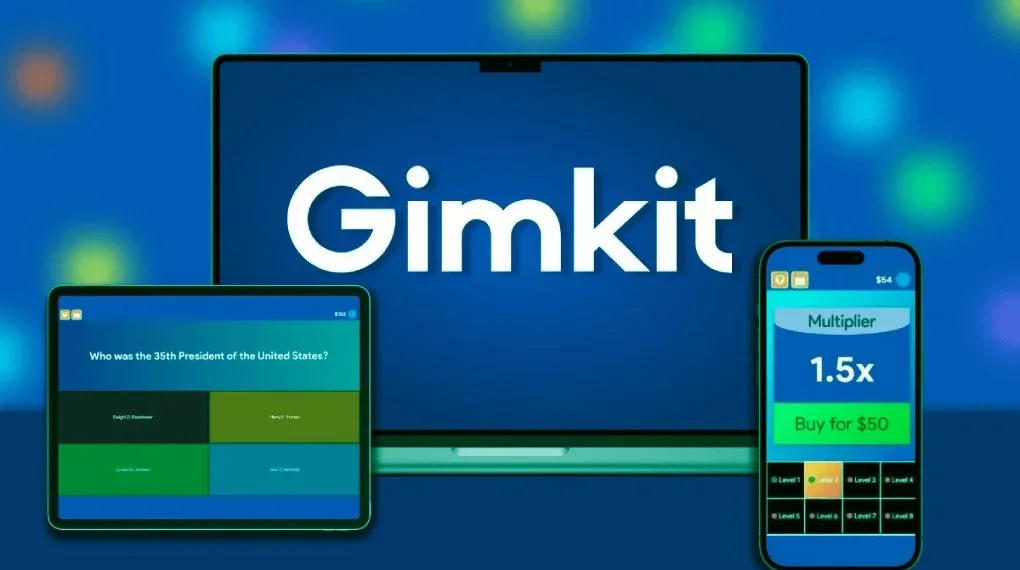
Hosting a game on Gimkit is more than just running a quiz. It’s about creating an interactive, engaging, and educational experience for your players. As a host, you decide how the game unfolds, which questions are asked, the game mode, and how long the session lasts. Whether you are a teacher, tutor, or peer running a fun review session, knowing how to host effectively can dramatically improve participation, learning, and enjoyment. This guide will walk you step-by-step through hosting a Gimkit game, managing players, using advanced features, troubleshooting issues, and analyzing results for continuous improvement.
What Does It Mean to Be a Gimkit Host?
Being a Gimkit host goes beyond simply clicking “start.” You are the facilitator and strategist. Your responsibilities include:
- Selecting or creating a Kit (the set of questions)
- Choosing the game mode (Classic, Team, Trust No One, or 2D modes)
- Configuring game settings (time limits, goals, power-ups, nicknames)
- Sharing the game join information with participants
- Managing the game in real-time
- Reviewing results to understand performance and learning gaps
The host is the glue that ensures the game is smooth, fun, and meaningful.
Step 1: Prepare Your Kit
- Create or Select a Kit
- Develop a set of questions that match your learning objectives.
- Use a mix of question types: multiple-choice, true/false, and short-answer questions to maintain engagement.
- Test Your Kit
- Preview your Kit to spot mistakes, unclear questions, or balance issues.
- Run a dry test to prevent technical problems during the live game.
- Design for Engagement
- Include images or audio in questions where relevant to make the game immersive.
- Mix difficulty levels: start easy and gradually increase complexity to maintain confidence.
Step 2: Choose the Right Game Mode
Gimkit offers multiple modes tailored to different learning goals:
- Classic Mode – Straightforward quiz play, perfect for quick reviews.
- Team Mode – Players collaborate in teams, fostering peer learning.
- Trust No One – Strategy-focused mode, ideal for social deduction or critical thinking games.
- 2D Modes (Fishtopia, Snowbrawl) – Interactive, playful modes with movement and power-ups for extra engagement.
Choose the mode that best aligns with your goals, whether it’s quick review, collaboration, or immersive gameplay.
Step 3: Configure Game Options
Once you click “Play Live,” set up your game:
- Game Goal – Determine how the game ends: time limit, question count, or cash goal.
- Join-in-Late – Allow or restrict players from joining after the game starts.
- Nickname Generator – Automatically generate safe nicknames for participants.
- Power-Ups – Enable or disable power-ups depending on whether you want competition or focus on learning.
- Shuffle Questions – Randomize question order to keep the game unpredictable.
- Difficulty Settings – Adjust difficulty to match your participants’ skill level.
These settings help tailor the experience and ensure a smooth game.
Step 4: Start Your Gimkit Live Game
- Enter the Lobby after configuring options.
- Share the join code, QR code, or direct link with your participants.
- Decide if you want to join as a player or spectate in 2D modes.
- Press Start Game when ready to begin.
Step 5: Manage the Game Effectively
During gameplay, your role is active and critical:
- Host Controls – Adjust volume, show/hide the leaderboard, manage players, or end the game early.
- Monitor Participants – Watch who’s answering correctly, who needs help, and provide encouragement.
- Remove Disruptive Players – Maintain fairness and focus by removing players with inappropriate behavior.
- Extend Time – Add extra time during 2D games if needed.
- Give Real-Time Feedback – Offer hints or guidance to enhance learning while keeping engagement high.
Effective management ensures the game is fun, fair, and educational.
Step 6: Conclude and Review Performance
When the game ends:
- View Reports – Analyze class and individual performance to understand learning outcomes.
- Export Data – Save results for tracking progress or sharing with students.
- Analyze Results – Identify common errors, difficult questions, and areas for improvement.
- Debrief Participants – Discuss tricky questions and reinforce key concepts for deeper understanding.
This reflection step transforms game data into actionable insights.
Advanced Tips for Successful Hosting
- Rotate Game Modes – Keep games fresh by alternating between Classic, Team, and 2D modes.
- Theme Your Kits – Use seasonal, topical, or fun themes to increase engagement.
- Strategic Power-Ups – Allow them for competition or limit them to focus on learning.
- Screen Sharing for Remote Classes – Make sure all participants see the game clearly.
- Set Clear Rules – Explain joining instructions, expected behavior, and scoring upfront.
- Warm-Up Questions – Start with easy questions to build confidence and comfort.
- Reflect and Improve – Use feedback and results to refine future Kits and hosting techniques.
Common Mistakes to Avoid
- Skipping the Test Run – Can lead to errors and technical issues.
- Choosing the Wrong Mode – Can reduce engagement if the mode doesn’t fit the group.
- Long Games – Avoid overly long sessions that cause fatigue and loss of attention.
- Ignoring Post-Game Analytics – Missed opportunity to reinforce learning.
- Poor Onboarding – Participants not understanding how to join or play wastes time.
Hosting in Remote or Hybrid Settings
- Explain Instructions Clearly – Make sure all participants understand how to join and play.
- Use Screen Sharing – Show the game interface for remote learners.
- Break into Teams – Promote collaboration using Team Mode or breakout rooms.
- Encourage Peer Learning – Let teams discuss answers for deeper understanding.
- Review Live – Analyze answers together and discuss misconceptions after the game.
Read More: Discover the Finest Jewelry Store Boca Raton Offers for Luxury, Style & Trust
Conclusion
Hosting a Gimkit game is about combining fun with learning. By carefully preparing your Kit, choosing the right game mode, configuring settings, actively managing the game, and reviewing results, you can create an engaging and educational experience for all participants. Mastering these hosting techniques ensures every Gimkit session is interactive, inclusive, and impactful. Whether in a classroom, remote setting, or with friends, effective hosting transforms a simple quiz into a dynamic learning tool.
FAQs
- How do I start hosting a Gimkit game?
Pick or create a Kit, click “Play Live,” choose a game mode, set options, share the join code, and start the game. - Which game modes should I use for my class?
Classic for review, Team Mode for collaboration, Trust No One for strategy, and 2D modes for immersive, interactive play. - Can players join after the game starts?
Yes, by enabling the “Join-in-Late” option during game setup. - What settings make the game fair and engaging?
Use nickname generation, limit power-ups for learning focus, shuffle questions, and set clear game goals. - How can I use post-game data to improve learning?
Review reports for common mistakes, identify struggling participants, and adjust future questions or teaching strategies accordingly.