Introduction
Blooket is a popular game-based learning platform that allows teachers to turn quizzes into fun classroom competitions. Hosting a Blooket game is one of the easiest ways to boost participation, improve knowledge retention, and add excitement to lessons.
With just a few clicks, teachers can select a question set, choose a game mode, share a join code, and start a live session that students can play from any device. Whether you are teaching in a physical classroom, in a computer lab, or through remote learning, hosting a Blooket session helps transform ordinary review activities into interactive learning experiences.
This step-by-step guide will show you exactly how to host a Blooket game, configure settings, manage students, and choose the best modes based on your learning goals. You will also learn advanced tips, classroom strategies, and troubleshooting methods to ensure your game runs smoothly from start to finish.
What Is Blooket and How Hosting Works
Blooket is a quiz-based educational tool where students answer questions to earn points, power-ups, coins, or rewards depending on the game mode. Hosting means that you, as the teacher, control the game session while students join using a code. You choose the game, monitor progress, and guide the activity. Blooket hosting is especially effective for:
- Lesson warm-ups
- Class reviews
- Exit tickets
- Test prep
- Group competitions
- Homework assignments
- Skill practice for any subject
Students do not need accounts to join, which makes hosting fast and convenient.
Step-by-Step: How to Host a Blooket Game (Main Tutorial)
1. Log In or Create an Account
Go to Blooket and sign in as a teacher. Creating an account lets you host games, save sets, track results, and access features.
2. Choose or Create a Question Set
You have two options:
- Search a question set made by other teachers
- Create your own custom set with questions and answers
Choose content that matches your lesson objective.
3. Click “Host”
After selecting the quiz set, click the Host button. This opens the game mode selection screen.
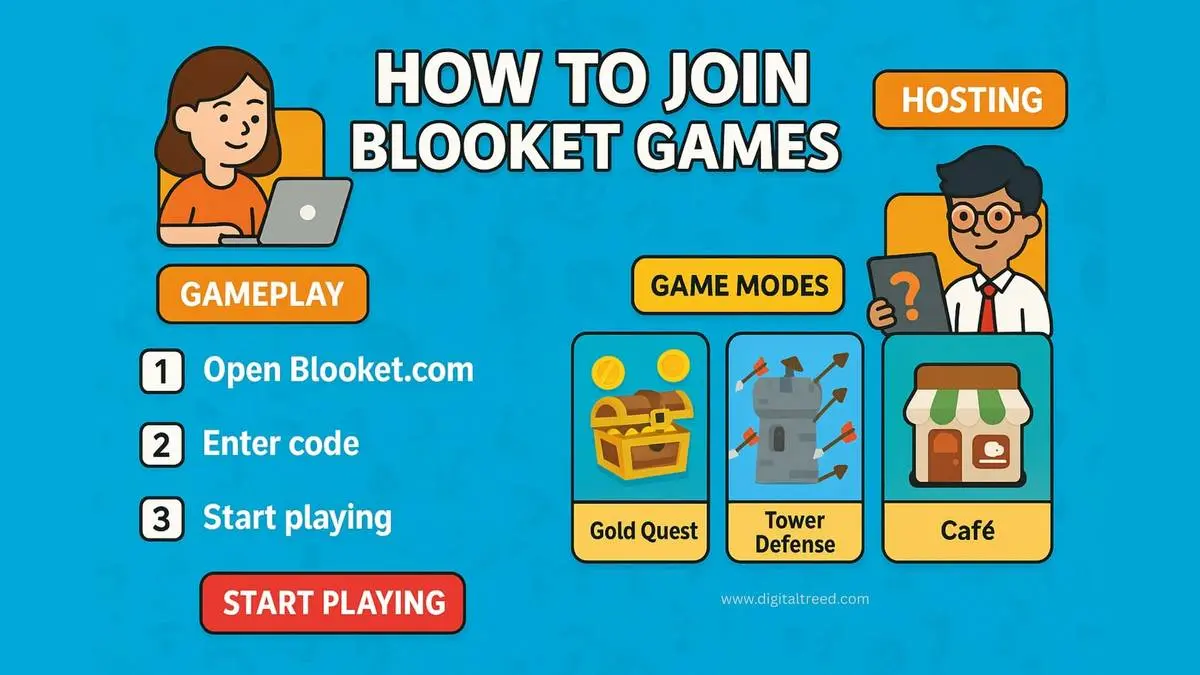
4. Select a Game Mode
Different game modes match different goals. Examples:
| Game Mode | Best For | Notes |
|---|---|---|
| Classic | Accuracy and review | Simple Q&A gameplay |
| Gold Quest | Fun and competition | Random rewards add excitement |
| Tower Defense | Strategy and stamina | Great for longer sessions |
| Battle Royale | Fast decision-making | Eliminates players in rounds |
| Racing | Speed and accuracy | Good for warm-ups |
| Homework Modes | Independent practice | Perfect for remote learning |
5. Adjust Host Settings
Before starting, you can adjust options such as:
- Time per question
- Number of rounds
- Random player names
- Allow or block late joiners
- Team or individual mode
- Show or hide correct answers
6. Share the Game Code
When hosting begins, the system generates a Game ID, QR code, or join URL. Students visit the play page, enter the code, type a nickname, and join the lobby.
7. Start the Game
Once all students have joined, click Start. You can track live scores, progress, and accuracy.
8. End Session and Review Results
After the game ends, you can discuss missed questions, reteach mistakes, or download reports (if using reporting features).
How to Choose the Best Blooket Mode (Teacher Strategy)
- Competitive classes → Gold Quest, Racing, Battle Royale
- Skill practice and mastery → Classic or Tower Defense
- Teamwork and collaboration → Team modes
- Independent play → Homework or solo modes
Always match mode to learning purpose.
Classroom Management Tips for Smooth Hosting
- Set behavior rules before starting
- Explain scoring rules clearly
- Limit display names to keep focus
- Pause occasionally and discuss questions
- Encourage accuracy over speed
- Celebrate participation, not only winners
- Use short games (8–15 questions) to maintain attention
- Reset rounds if energy drops or students get distracted
Common Problems and Quick Fixes
| Problem | Cause | Solution |
|---|---|---|
| Students can’t join | Mistyped code | Read the code aloud twice |
| Game lag | Weak network | Ask students to close extra tabs |
| Inappropriate nicknames | Free typing | Turn on random names |
| Students guessing randomly | Speed pressure | Increase question timer |
Pro Tips to Host Like an Expert
- Test the set before hosting
- Combine Blooket with a mini-lesson
- Use results to guide the next class
- Keep competition friendly, not stressful
- Rotate Blooket days to maintain excitement
Advanced Hosting Ideas
- Exit Ticket Game: 5-question Classic mode at end of class
- Team Tournament: 3 rounds, points added by group
- Homework Challenge: Solo mode with rewards the next day
- Teacher vs Students: Add your own nickname as a player and join the fun
Conclusion
Hosting a Blooket game is an effective way to combine learning with excitement. With just a question set and a game mode, teachers can create a fully interactive experience that motivates students, increases engagement, and improves knowledge retention. The hosting process is simple, but the impact is powerful—students pay attention, participate willingly, and remember more of what they study.
By choosing the right mode, adjusting host settings, reviewing results, and applying smart classroom strategies, any teacher can run a smooth and successful Blooket session. Whether you use it for warm-ups, reviews, test prep, or homework, Blooket brings energy and enjoyment to your lessons. Start with short games, build routines, and watch students look forward to learning.
FAQs
1. Do students need an account to join a hosted Blooket game?
No. Students can join with just the Game ID and a device.
2. Can I host Blooket for free?
Yes. Hosting is available on the free plan, with optional upgrades.
3. How many players can join a Blooket game?
Most classroom sizes work fine, and you can host large groups depending on mode.
4. Can I assign a hosted game as homework?
Yes. Use Homework or Solo modes for after-class play.
5. Can students join after the game starts?
Yes, if you enable the “Allow Late Join” option in host settings.