
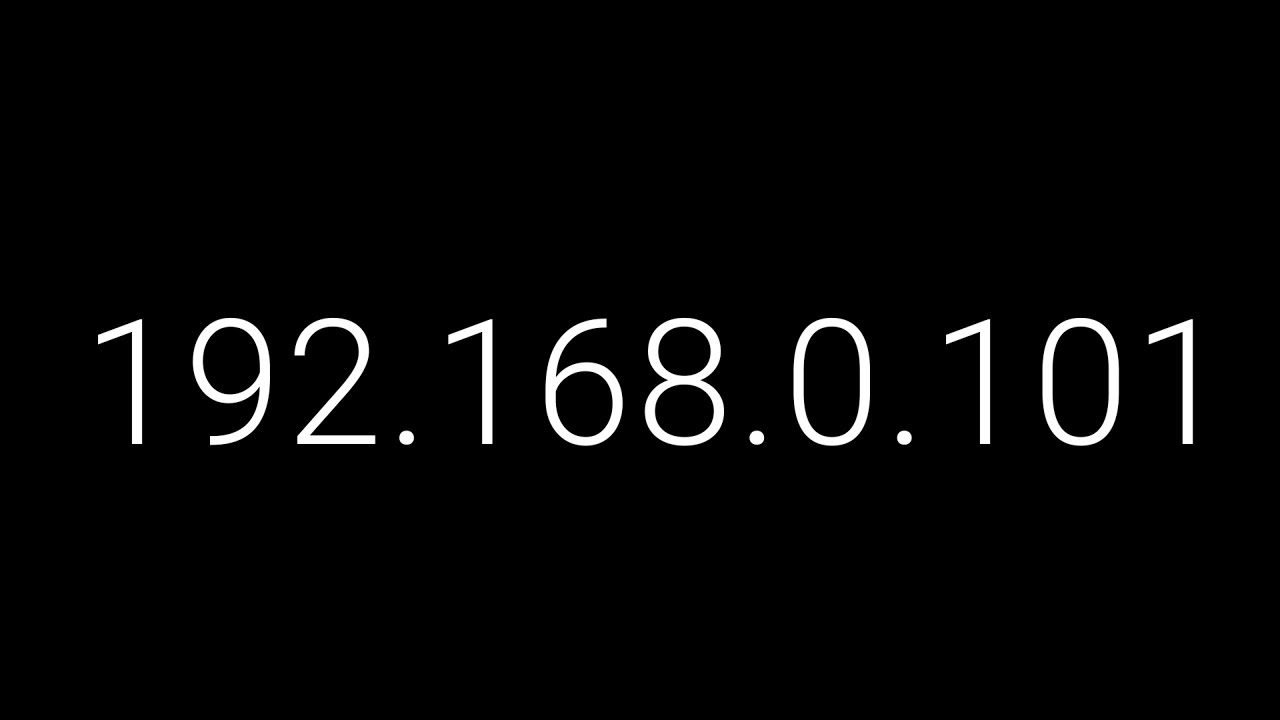
When managing a home or small office network, you may often encounter IP addresses like 192.168.0.101. But what exactly does this number mean, and why is it important? In simple terms, it’s part of your network’s addressing system, allowing devices to communicate effectively. Understanding this IP address can save you from countless connectivity headaches and even improve your network’s performance.
What is 192.168.0.101?
192.168.0.101 is a private IPv4 address, commonly used within home networks. Private IP addresses are not accessible directly from the internet—they exist solely for internal communication between your router and connected devices. In most cases, your router automatically assigns this IP to a device via DHCP (Dynamic Host Configuration Protocol), but it can also be set manually.
This address belongs to the 192.168.0.0/24 subnet, meaning it can accommodate up to 254 devices. If you have a smart TV, laptop, or printer connected to your home network, chances are one of them may be assigned 192.168.0.101 at some point.
How 192.168.0.101 Works in Your Network
Think of your home network as a small city. Every device (smartphone, laptop, printer) is like a house, and each house needs a unique address to receive mail. The IP address is that “house number” for digital devices. Without unique IP addresses, devices couldn’t find each other, leading to communication failures.
When a device is assigned 192.168.0.101:
- It communicates through the router to other devices in your network.
- It can access the internet via the router’s public IP.
- It can be set for advanced network tasks like port forwarding, printing, or media streaming.
Personal Experience: When I first set up a smart home system, assigning a fixed IP like 192.168.0.101 to my printer prevented it from losing connection every time I rebooted the router—a small change that saved hours of frustration.
Common Uses of 192.168.0.101
- Device Identification: Ensures each device is uniquely recognized within the network.
- Port Forwarding: Helps direct external requests to a specific device, like a gaming console or camera.
- Network Troubleshooting: Assigning a static IP can resolve connection conflicts.
- Remote Access: Enables safe local or external access to devices like NAS servers.
192.168.0.101 in Action
Imagine a family home with multiple devices: two laptops, three smartphones, a smart TV, a printer, and a Wi-Fi camera system. Every device initially receives a dynamic IP from the router. One day, the printer stops responding because its IP changed. By assigning 192.168.0.101 as a static IP, the printer reconnects flawlessly, allowing the family to print school projects and work documents without interruptions.
Dynamic vs Static IP Addresses
Understanding dynamic and static IPs can help you decide when to assign 192.168.0.101 manually. Here’s a quick comparison:
| Feature | Dynamic IP | Static IP |
|---|---|---|
| Assignment | Automatically by router | Manually by user |
| Changes | Changes after router reboot | Remains fixed |
| Ideal Use | General devices | Printers, servers, cameras |
| Reliability | Moderate | High |
| Ease of Setup | Easy | Slightly technical |
Assigning a static IP like 192.168.0.101 is especially useful for devices that require constant connectivity or external access.
How to Assign 192.168.0.101 to a Device
- Access Router Settings: Enter your router’s gateway IP (e.g., 192.168.0.1) in a web browser.
- Login Credentials: Use your admin username and password.
- Navigate to DHCP Settings: Find the “DHCP Reservation” or “Static IP” section.
- Enter Device MAC & IP: Assign 192.168.0.101 to the device’s MAC address.
- Save & Reboot: Apply changes and restart the device for the new IP to take effect.
This process ensures your device consistently uses the same IP address, improving network reliability and avoiding IP conflicts.
Troubleshooting Common Issues
Even with correct setup, you may encounter connectivity problems with 192.168.0.101:
- IP Conflict: Two devices using the same IP causes disconnection. Solution: assign unique IPs.
- Network Timeout: If the device fails to communicate, check router DHCP range or firewall settings.
- Incorrect Subnet: Ensure the device and router are in the same subnet (e.g., 192.168.0.x).
Security Considerations
Although 192.168.0.101 is a private IP, network security remains crucial:
- Strong Router Password: Protects devices from unauthorized access.
- Firewall Rules: Prevent devices from being exposed externally unless necessary.
- Firmware Updates: Keeps router and devices safe from vulnerabilities.
Pro tip: Assigning fixed IPs can also help with monitoring which devices are on your network, enhancing security.
Read More: 192.168.7.5:8090 Guide to Local Network Access
Conclusion
192.168.0.101 is more than just a number—it’s a key tool for managing your home network. Whether you’re setting up a printer, streaming device, or security camera, knowing how to assign and troubleshoot this IP can simplify your digital life. Static IP assignments, proper configuration, and security measures ensure smooth connectivity and reliable access for all devices.
FAQs
Q1: Can I use 192.168.0.101 for my router?
No, this IP is typically assigned to devices, not the router itself. Routers usually use 192.168.0.1 or 192.168.1.1.
Q2: Is 192.168.0.101 safe?
Yes, it’s a private IP used internally and not directly exposed to the internet. Security depends on your network configuration.
Q3: What if two devices get 192.168.0.101?
This causes an IP conflict. Assign a unique static IP to each device or enable DHCP to handle assignments automatically.
Q4: Can I access 192.168.0.101 from the internet?
Not directly. Private IPs cannot be accessed externally without port forwarding or VPN setup.
Q5: How do I find which device has 192.168.0.101?
Check your router’s connected devices list or use a network scanning tool to identify the device assigned this IP.